Jump Icon Properties: Difference between revisions
Created page with "==Introduction== border|link= Jump icons are added to a Flowcode project macro to allow program execution to unconditionally jump to another location in..." |
No edit summary |
||
| (One intermediate revision by the same user not shown) | |||
| Line 1: | Line 1: | ||
[[File:iconJump.png|border|link=]] | [[File:iconJump.png|border|link=]] | ||
| Line 5: | Line 4: | ||
In earlier versions of Flowcode, these were called "Connection Points" and the only type of jump supported was the "Goto" jump. Since v11.0.2, Flowcode now supports other types of unconditional jump: "Break", "Continue" and "Return". | In earlier versions of Flowcode, these were called "Connection Points" and the only type of jump supported was the "Goto" jump. Since v11.0.2, Flowcode now supports other types of unconditional jump: "Break", "Continue" and "Return". | ||
==Old Versions== | |||
This page is current for Flowcode v11 and later. Earlier versions can be found below: | |||
{| class="wikitable" | |||
|+ | |||
|- | |||
| [[Special:PermanentLink/10814|Flowcode v10]] | |||
|- | |||
| [[Special:PermanentLink/10814|Flowcode v9]] | |||
|- | |||
| [[Special:PermanentLink/10814|Flowcode v8]] | |||
|} | |||
Note that in previous versions of Flowcode, the Label/Jump icons were called "Connection Points". | |||
| Line 12: | Line 27: | ||
|- | |- | ||
|[[File:iconJump.png|border|link=]] | |[[File:iconJump.png|border|link=]] | ||
| width="50px" |→ | |||
|[[File:Gen_Goto_Connection_Point_Flowchart_Icon.png]] | |||
| width="50px" |→ | | width="50px" |→ | ||
|[[File:Properties_Jump.png|link=]] | |[[File:Properties_Jump.png|link=]] | ||

Latest revision as of 15:06, 10 June 2026

Jump icons are added to a Flowcode project macro to allow program execution to unconditionally jump to another location in the macro.
In earlier versions of Flowcode, these were called "Connection Points" and the only type of jump supported was the "Goto" jump. Since v11.0.2, Flowcode now supports other types of unconditional jump: "Break", "Continue" and "Return".
Old Versions
This page is current for Flowcode v11 and later. Earlier versions can be found below:
| Flowcode v10 |
| Flowcode v9 |
| Flowcode v8 |
Note that in previous versions of Flowcode, the Label/Jump icons were called "Connection Points".
Details
|
|
→ | 
|
→ | 
|
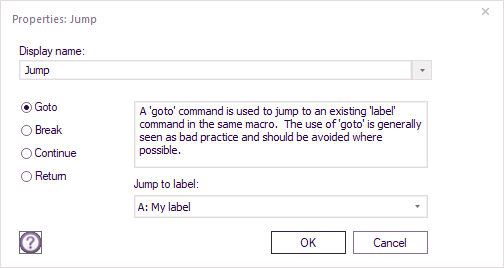
Display Name
The name of the icon that appears on the flowchart.
Goto / Break / Continue / Return
The type of jump. More information on each jump type is below.
Jump to label
The label to jump to if using the "Goto" type of jump.
Jump Types
Goto
A "Goto" jump is used to link program flow from one part of a macro to another. To achieve this, the macro must already have a Label command icon. When program execution reaches the Jump command, it will unconditionally jump to the corresponding Label command that is set in the "Jump to label" dropdown.
Note: Using Jump::Goto commands is generally seen as bad programming practice and they should be avoided where possible. It makes projects more difficult to debug, and most well written programs will usually not need to use this icon.
Break
A "Break" jump prematurely exits a Loop or Switch command. Program execution will continue with the command immediately after the end of the Loop or Switch that contains the "Break" jump command.
It must occur within a Loop or Switch command, otherwise an error will occur. If it is contained within multiple 'levels' of Loop or Switch commands, it will jump out of the inner-most command.
Continue
A "Continue" jump prematurely exits the current iteration of a Loop. If the Loop's test remains true, the next iteration of the Loop will be performed. Otherwise, program execution will exit the Loop and continue with the command directly following the end of the Loop.
Return
A 'Return' jump command can be located anywhere in a macro. When the program executes this command, it will immediately exit the current macro and will not execute any other code in the macro. If this macro returns a value, the current value of the return variable is returned.
Video
See the Jump icon video to see how this icon can be used in your Flowcode projects.