Exercise - Create an LED Component: Difference between revisions
JohnVerrill (talk | contribs) No edit summary |
No edit summary |
||
| Line 1: | Line 1: | ||
[[File:Gen ExerciseLEDcreate LEDcomp props01.jpg|200px|right]] | [[File:Gen ExerciseLEDcreate LEDcomp props01.jpg|200px|right]] | ||
==Creating a graphic== | |||
* Open a new Flowcode flowchart. | * Open a new Flowcode flowchart. | ||
| Line 12: | Line 14: | ||
* The blue dotted square around it shows that this object is currently selected. | * The blue dotted square around it shows that this object is currently selected. | ||
* Right-click and select 'Center all objects' from the menu. | * Right-click and select 'Center all objects' from the menu. '';This is unnecessary - Flowcode will do this for you on export now''' | ||
* Change the name of the component to 'LEDcomponent'. | * Change the name of the component to 'LEDcomponent'. | ||
| Line 20: | Line 22: | ||
::* Change it to 'LEDcomponent'. | ::* Change it to 'LEDcomponent'. | ||
==Adding properties== | |||
* Next, add two properties to the LED. The first allocates a color. The second sets up a connection from the LED to the controlling microcontroller. | * Next, add two properties to the LED. The first allocates a color. The second sets up a connection from the LED to the controlling microcontroller. | ||
| Line 39: | Line 42: | ||
::* Click on the word 'Unconnected', alongside the 'pin' property. | ::* Click on the word 'Unconnected', alongside the 'pin' property. | ||
::* Select an appropriate pin, such as RA0, from the chip pin layout. | ::* Select an appropriate pin, such as RA0, from the chip pin layout. | ||
==Updating when properties change== | |||
The [[Event Components.Property|Property change event]] is triggered when any property you have added to your component changes. | |||
'''To complete''' | |||
==Updating when a pin changes== | |||
Because your component is connected to a pin, you want to run a flowchart when that pin changes. To do this, you can use the [[Event Connection.PinChange|PinChange event]]. | |||
'''To complete''' | |||
Revision as of 12:33, 21 May 2013

Creating a graphic
- Open a new Flowcode flowchart.
- Make sure that the System Panel and Properties Panel are visible.
- If they are not, then select them in the View Menu.
- Click on the hemisphere shape in the Shapes menu and drag one onto the Systems Panel.
- The blue dotted square around it shows that this object is currently selected.
- Right-click and select 'Center all objects' from the menu. ;This is unnecessary - Flowcode will do this for you on export now'
- Change the name of the component to 'LEDcomponent'.
- To do this:
- Find the 'handle' of the component at the top of the Panel Properties.
- Click on the name 'shape' (the default name).
- Change it to 'LEDcomponent'.
Adding properties
- Next, add two properties to the LED. The first allocates a color. The second sets up a connection from the LED to the controlling microcontroller.
- First add a default color to the component, using a new property called 'color'.
- To do this:
- De-select the hemisphere by clicking anywhere outside it in the Systems Panel.
- Hover over the icon to the right of the 'Properties' label.
- Click on the down-arrow that appears.
- Click on 'Add new'.
- In the 'Cosmetic name' box type "LEDcolor".
- Select 'Color picker' for the 'Property type'.
- Type "color" for the 'Property variable' name.
- In the same way, then add another new property to specify the default connection. Give it a Cosmetic name "Connection", with Property type 'Single digital pin' and a Property variable name "pin".
- Finally, configure these properties. To do this:
- Click on the color shown for the 'color' property.
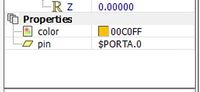
- Select a color from the color chart that appears.
- Click on the word 'Unconnected', alongside the 'pin' property.
- Select an appropriate pin, such as RA0, from the chip pin layout.
- Click on the color shown for the 'color' property.


Updating when properties change
The Property change event is triggered when any property you have added to your component changes.
To complete
Updating when a pin changes
Because your component is connected to a pin, you want to run a flowchart when that pin changes. To do this, you can use the PinChange event.
To complete